Creating new repair orders
How to open a repair order: choosing the device type, brand and model, describing the fault, repair services and taking the device in
Updated
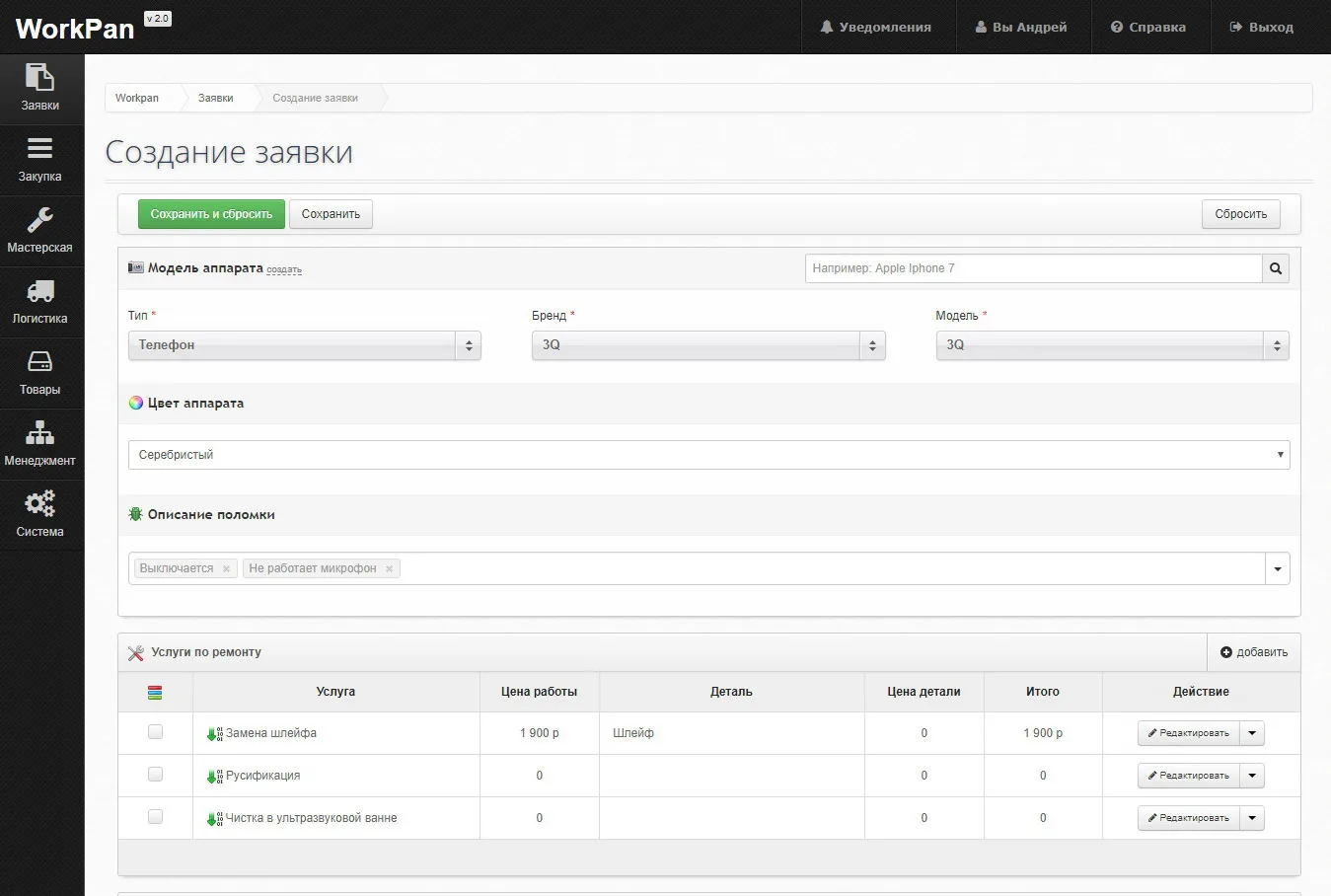
The “Create order” module is where an order enters the system. The front desk fills in the device card, records the fault as described by the client and immediately builds the list of repair services.
Contents:
You can reach “Create order”:
- Control panel → Sales department → Orders → “+”
- Quick access menu → Orders → Create order
Device model
The device is defined by three linked fields — Type, Brand and Model. All three are required, and the values come from the reference books of device types, brands and models. The lists are linked to each other: the chosen type narrows the list of brands, and the brand narrows the list of models.
If the model is not in the reference book yet, it is added through the “create” link next to the block title — there is no need to fill in the order again. The search field on the right finds a model by name.
Device colour
The colour of the case is chosen from a list. The field exists so that identical devices of the same model are not mixed up when handed back.
Fault description
The fault is recorded as described by the client. The field takes several values at once — they are added as tags, so one order can carry both “Turns off” and “Microphone not working”.
Repair services
The “Repair services” table holds the work to be done. Each line has its own labour price and, where needed, a part from the parts reference book and its price. The “Total” column adds up the labour and the part, and the sum of all lines gives the preliminary cost of the repair to be agreed with the client.
The list of available services is pulled from the services reference book, taking into account which services are allowed for the chosen model — see “Managing services in models”.
Saving the order
The completed form is saved with one of two buttons:
- “Save” — the order is created and the system opens its overview.
- “Save and reset” — the order is created and the form is cleared for the next intake. Handy when there is a queue at the desk.
The “Reset” button clears the form without creating an order.