Financial items reference book: how the module works
How the “Financial items reference book” module works: adding new entries, editing existing ones, disabling and deleting.
Updated
The “Financial items reference book” module is meant for compiling the lists of financial items that take part in the “Cash desk” module to record operational activity. We should also note that this module depends on the “Financial item groups reference book”.
Contents:
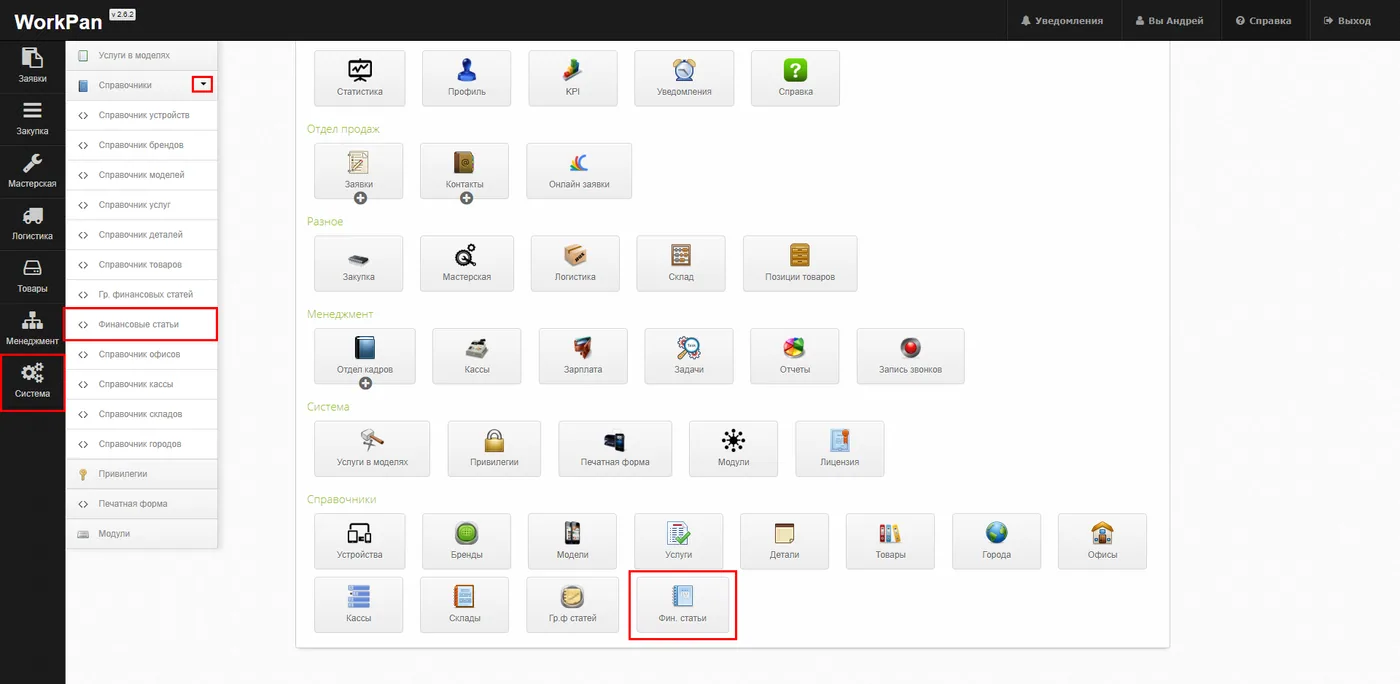
You can reach the “Financial items reference book” section:
- Control panel → Financial items
- Quick access menu → System → Reference books → Financial items reference book
What the module does:
In the “Financial items reference book” section you can add new entries, edit existing ones, change the display status and delete entries you no longer need.
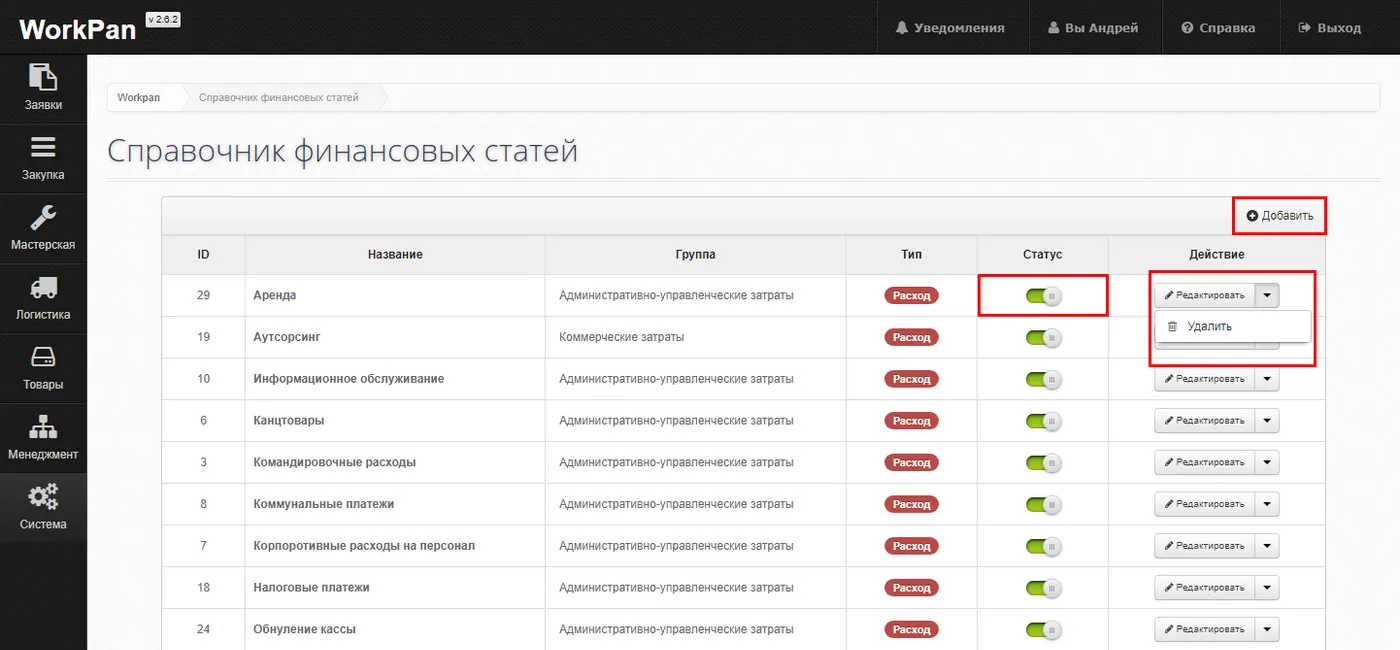
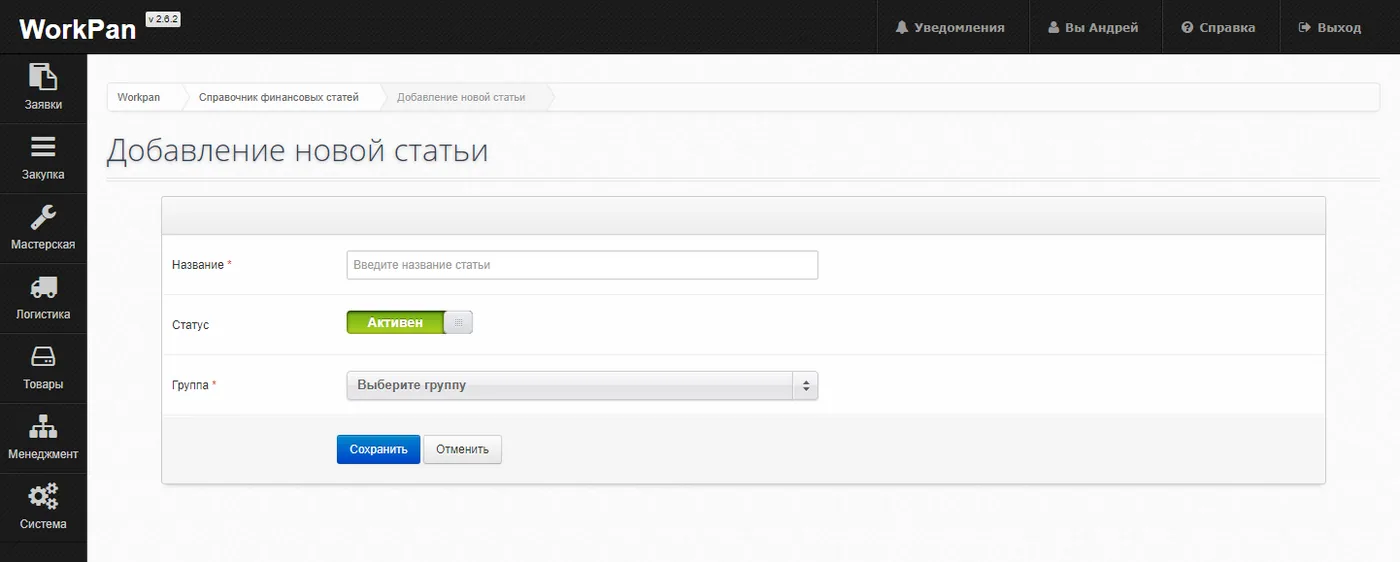
A new entry can be added as follows:
- Click the “Add” button.
- You are taken to the corresponding section with the add form.
- In it you have to:
- State the “Name” of the new entry.
- Choose the display status
- Choose the item group (see the “Financial item groups reference book”.)
- Once the data is entered, click the “Save” button to save the values.

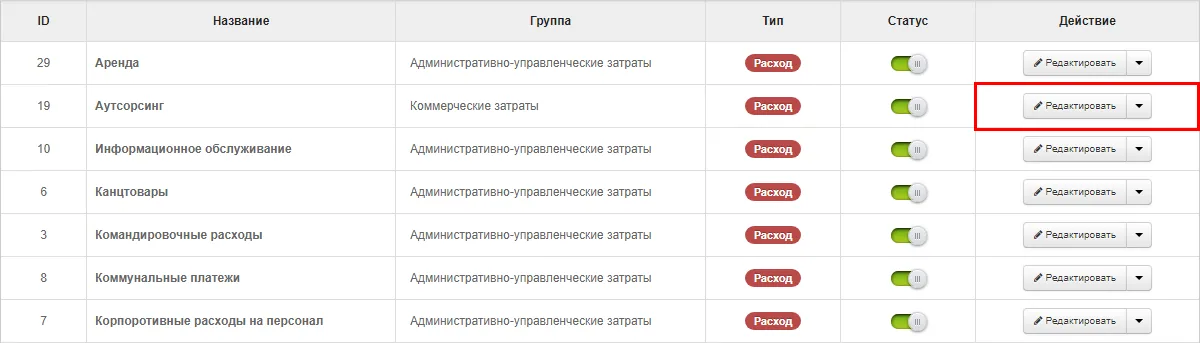
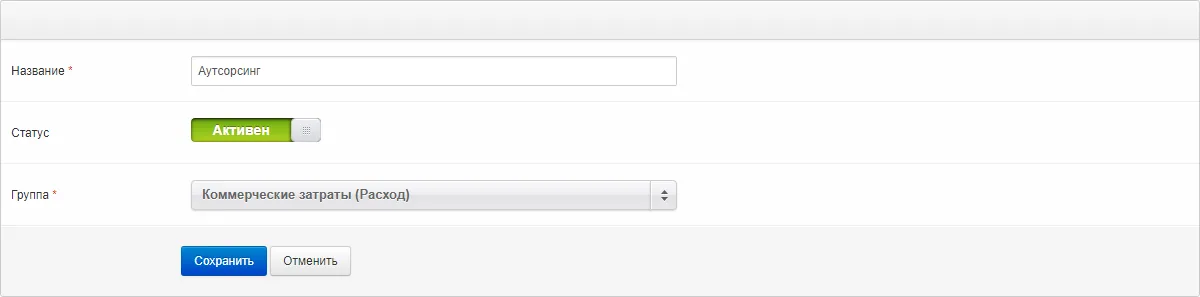
To edit an entry in the reference book:
- Select the entry you need to edit.
- Click the “Edit” button. You will be taken to the editing form.
- Make the changes you need.
- Save the values with the “Save” button.
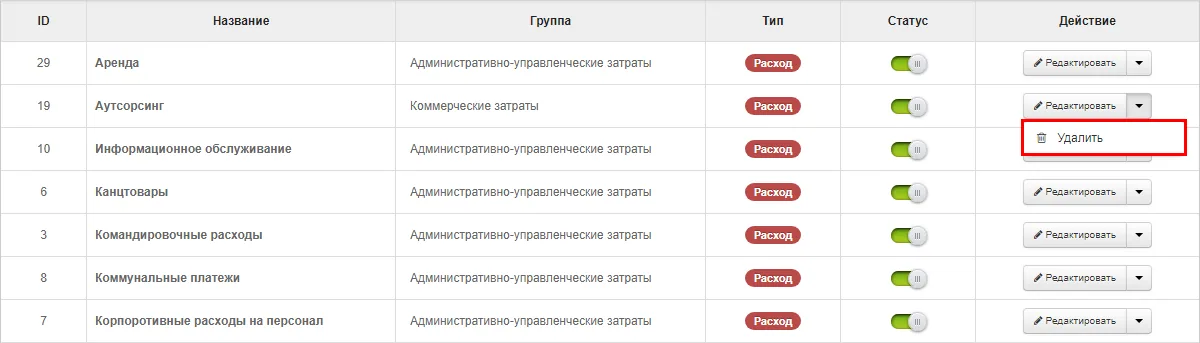
To delete an entry from the reference book:
- Select the entry you need to delete.
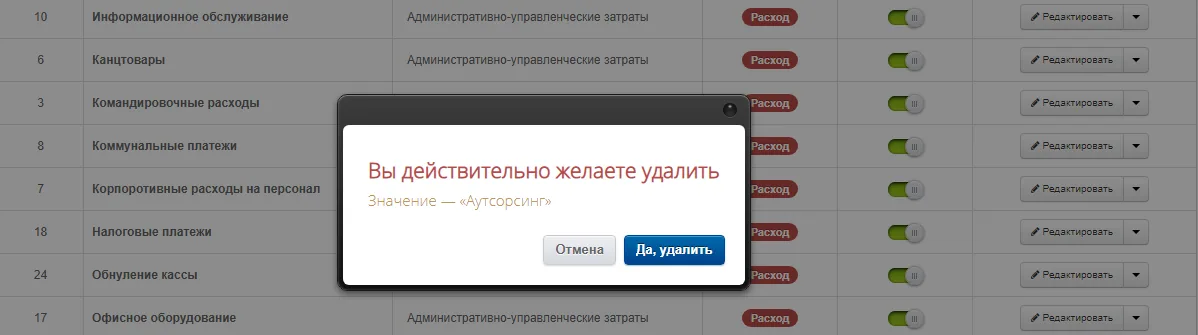
- Click the drop-down menu next to the “Edit” button. In the field that appears, choose “Delete”.
- Confirm the action in the window that appears: “Yes, delete”.
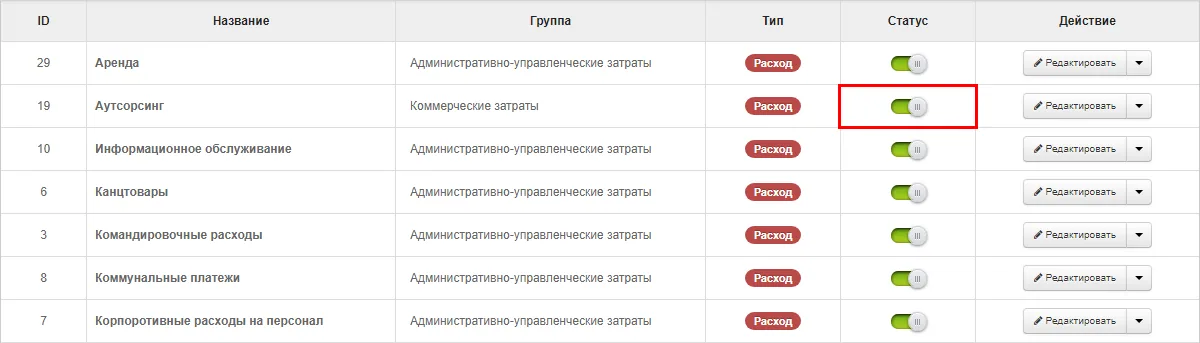
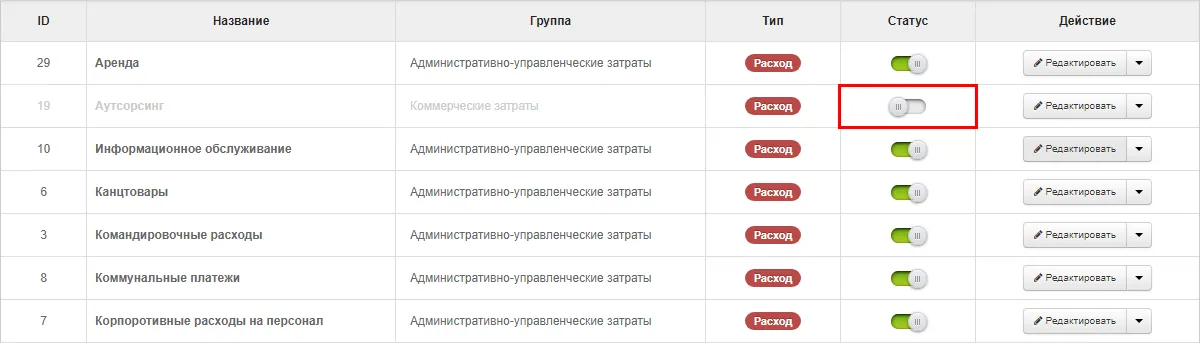
To switch some entries of the reference book off temporarily:
- Select the entry you need to switch off.
- With the mouse, drag the toggle to the left until the label “Active” changes to “Disabled”. The toggle colour changes from green to grey. Dragging it back to the right activates the disabled entry again.