Services reference book: how the module works
How the “Services reference book” module works: adding new entries, editing existing ones, disabling and deleting.
Updated
The “Services reference book” module is meant for building the repair services that can later be linked to models, brands and devices. After that, when new orders are created, those services are loaded in automatically.
When building the “Services reference book” you can also choose a “Part” (from the “Parts reference book”) and set a base price for the service. The price is what the client pays for the labour when an order is created.
WorkPan comes with a base of services the user receives at registration. If needed, the user can edit existing services, add new ones, switch off or delete the ones they do not need.
Contents:
- Adding
- Editing
- Deleting
- Disabling/Enabling
- Linking to the “Devices reference book” and the “Brands reference book”
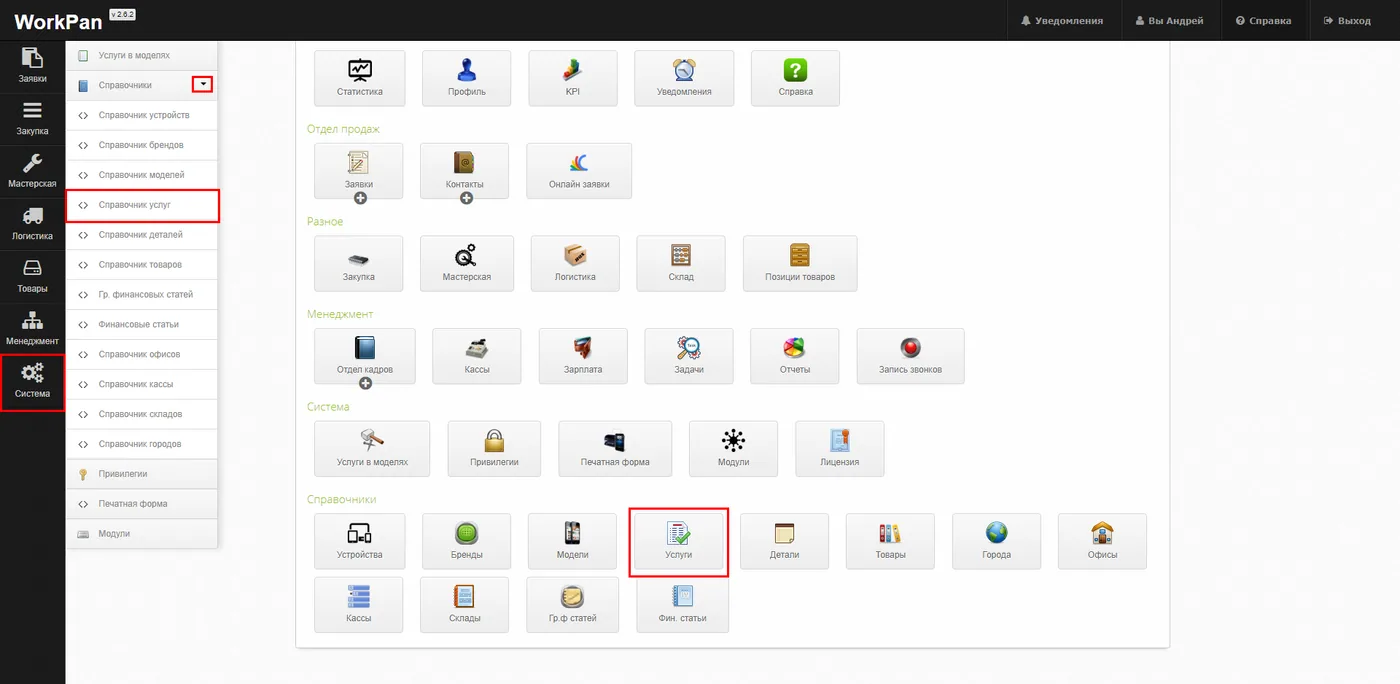
You can reach the Services reference book section:
- Control panel → Services
- Quick access menu → System → Reference books → Services reference book
In the Services reference book section you can search the list of services, add new ones, delete and edit existing ones. Temporarily switching services off from the list is available too. You can also choose to show 10, 25, 50 or 100 rows per page.
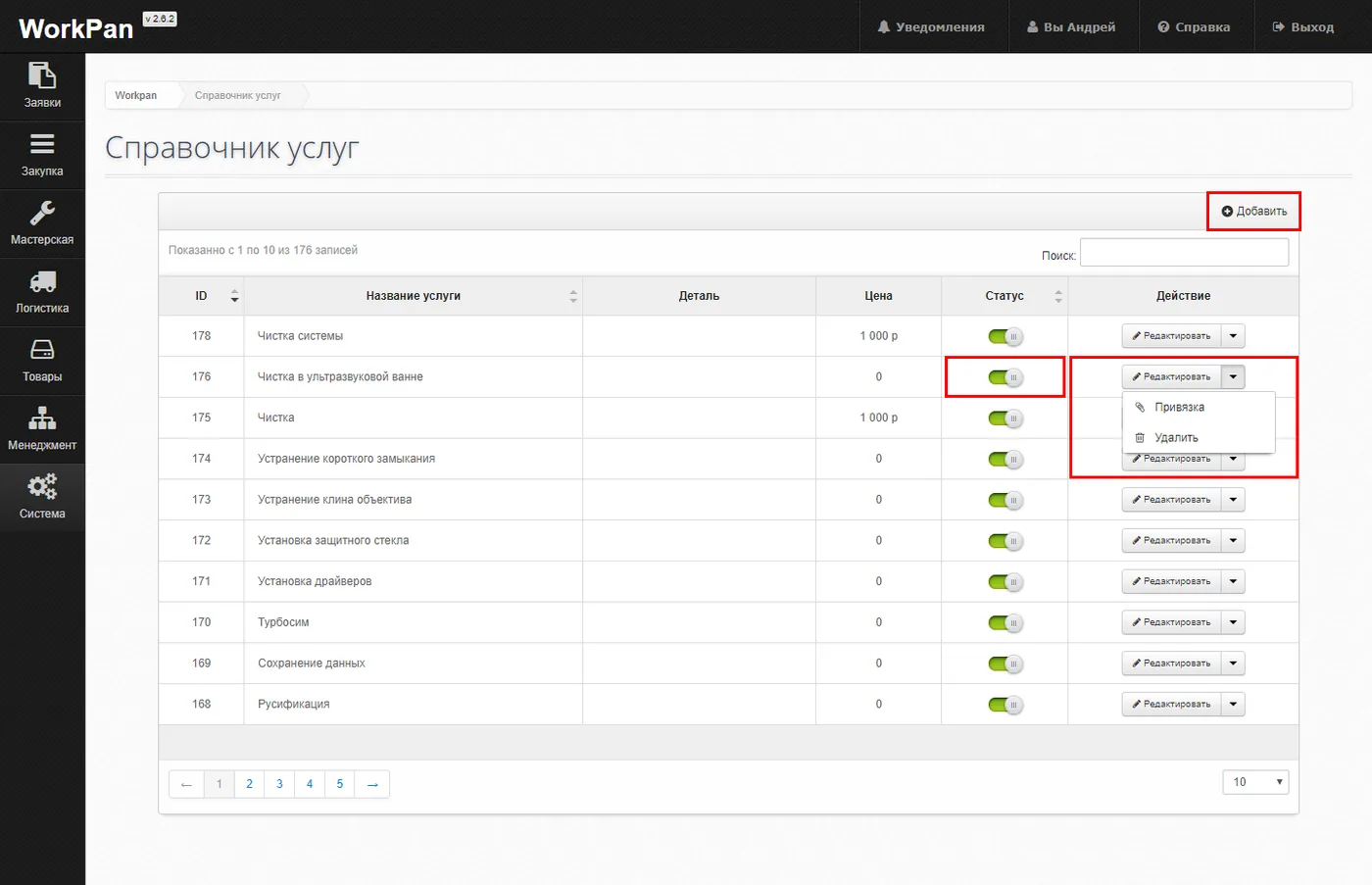
A new service can be added as follows:
- Click the “Add” button.
- In the modal window that appears
- Enter the service name.
- Choose a part (see the “Parts reference book”).
- Enter the labour price (what the work/service costs the client)
- Click the “Save” button.

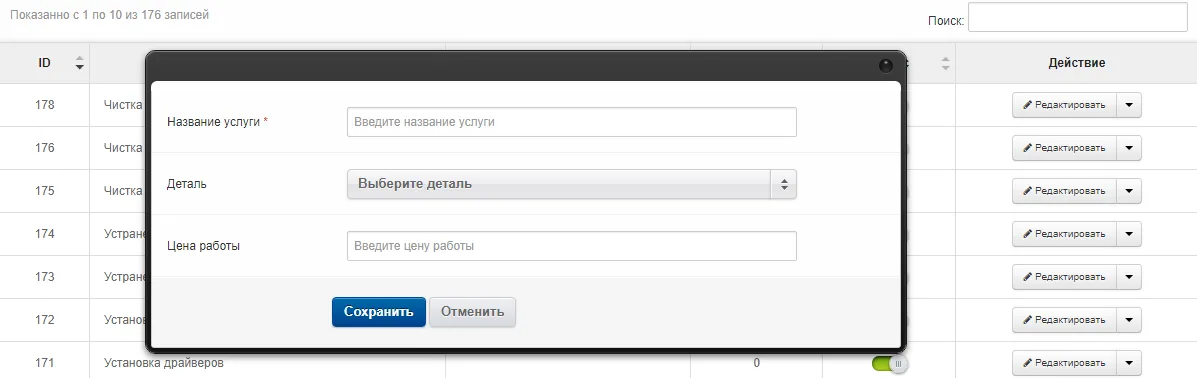
The modal window for adding a new service
Note: when new services are added, the system checks the name for uniqueness, and if such a service has been added before, the system will say so.
To edit an existing service:
- Select the entry you need to edit.
- Click the “Edit” button.
- In the modal window that appears
- Enter the service name.
- Choose a part (see the “Parts reference book”).
- Enter the labour price (what the work/service costs the client)
- Click the “Save” button.
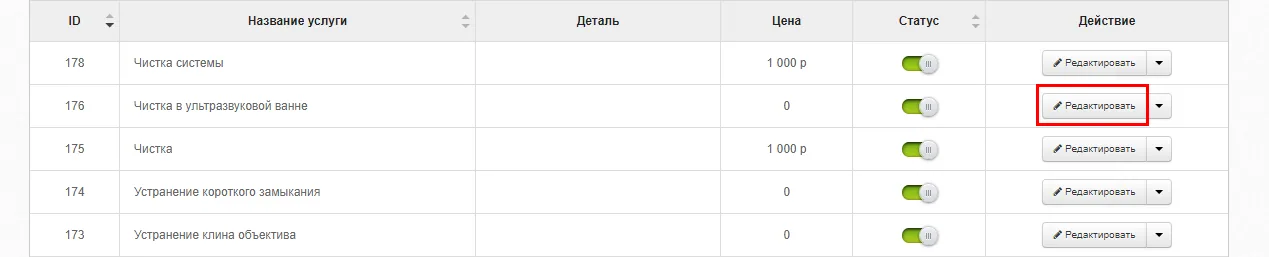
choosing the entry you need
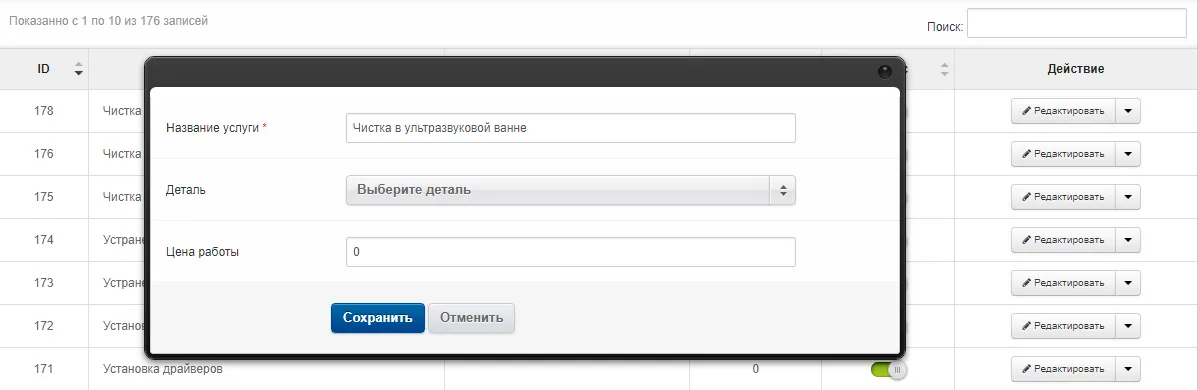
the editing modal window
Note: when services are edited, the system checks the name for uniqueness, and if such a service has been added before, the system will say so.
To delete a service from the reference book:
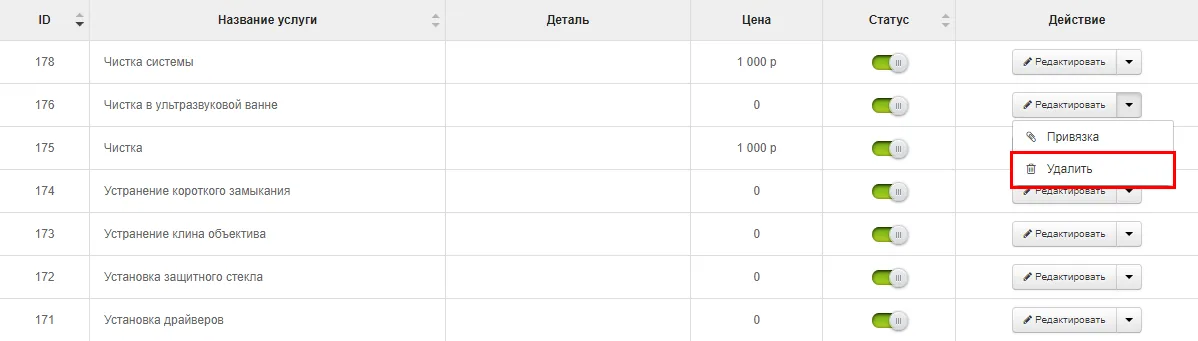
- Select the entry you need to delete.
- Click the drop-down menu next to the “Edit” button. In the field that appears, choose “Delete”.
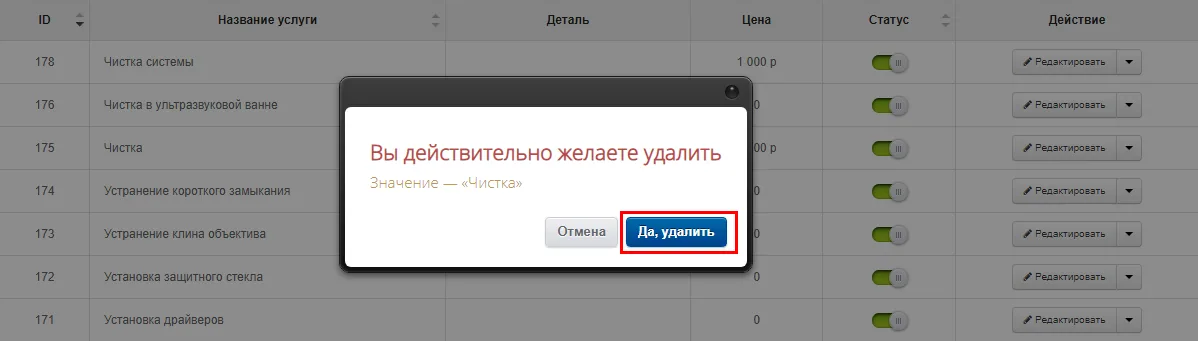
- Confirm the action in the window that appears: “Yes, delete”.
To switch some services off temporarily:
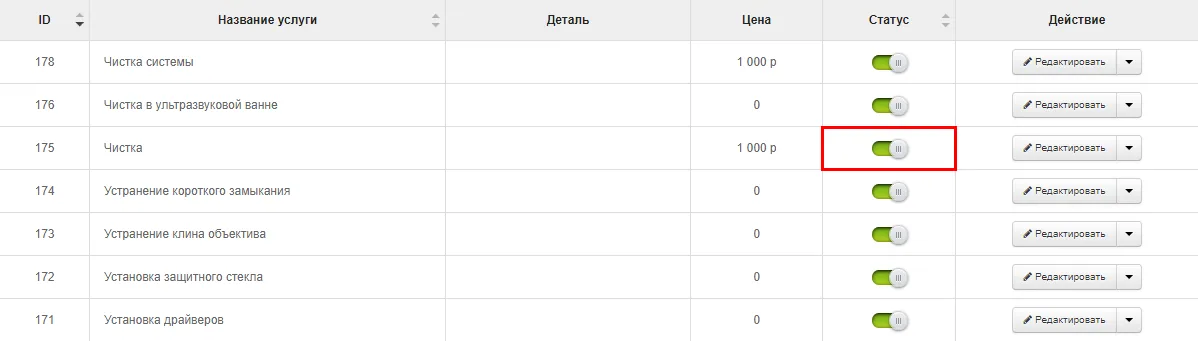
- Select the entry you need to switch off.
- With the mouse, drag the toggle to the left until the label “Active” changes to “Disabled”. The toggle colour changes from green to grey. Dragging it back to the right activates the disabled entry again.
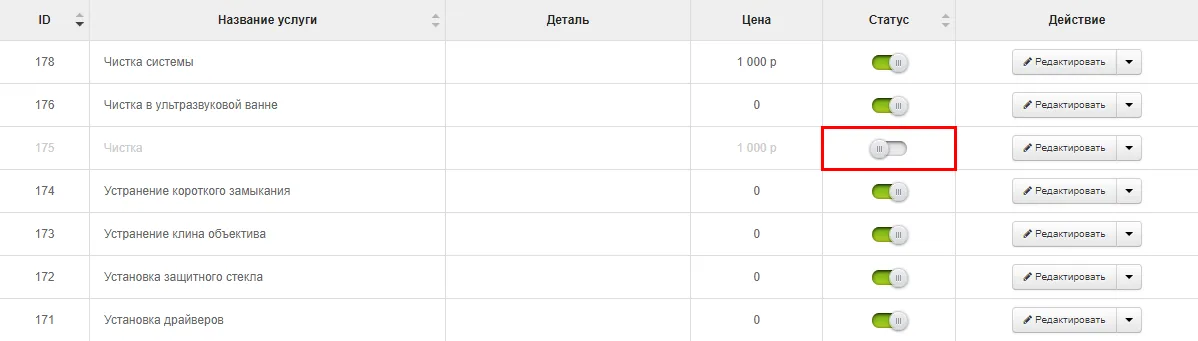
Linking services to brands and devices
Linking services to brands and devices lets you create “inherited” services. They are needed to attach services to a whole category of devices, or to a whole category of brands. Then, when orders are created and a model is chosen, such services are loaded in automatically down the hierarchy.
To link a service to devices/brands:
- Select the entry you need to link.
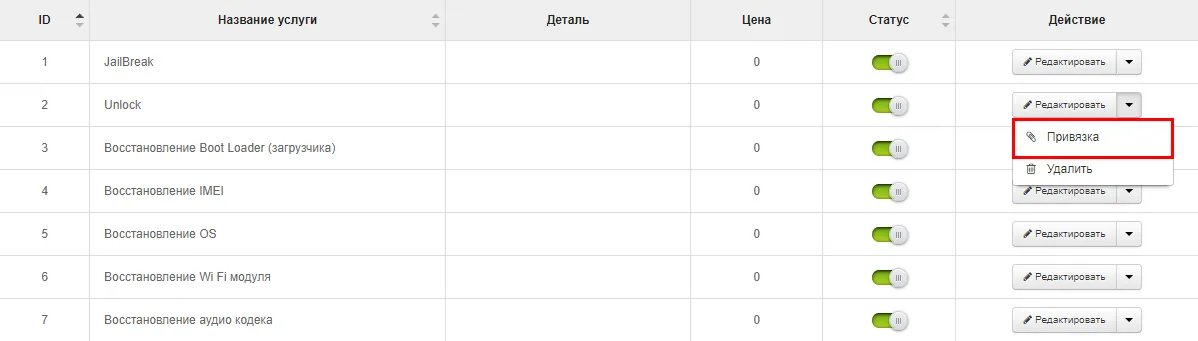
- Click the drop-down menu next to the “Edit” button. In the field that appears, choose “Link”.
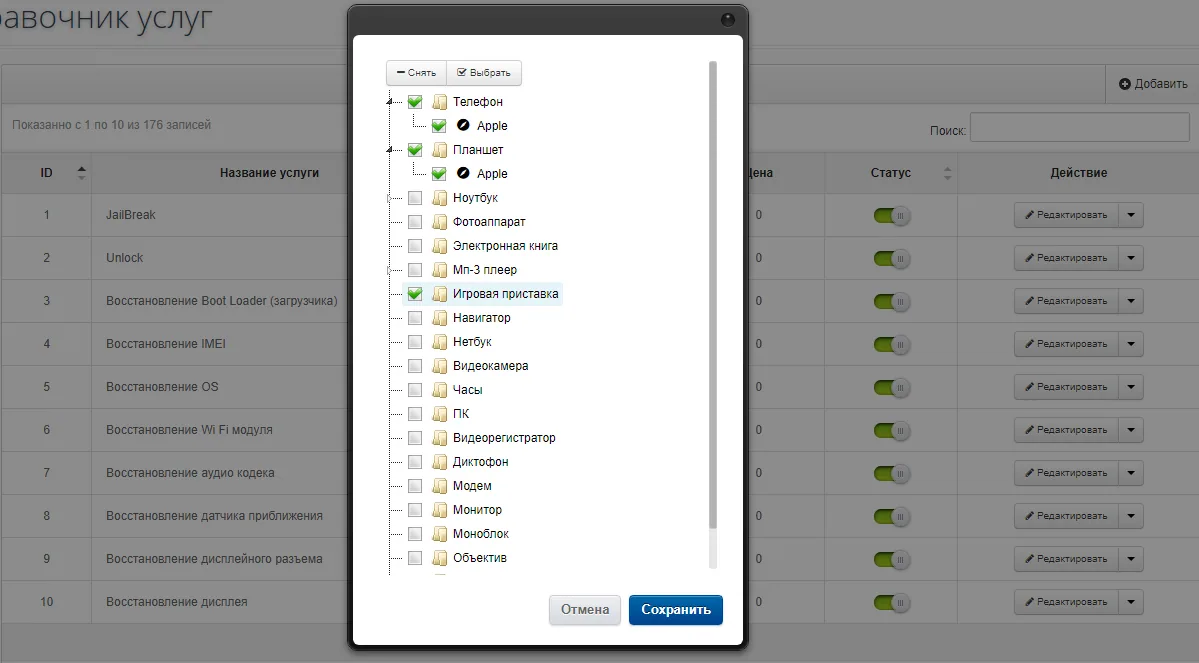
- In the modal window, choose the devices and brands the service should be attached to. Simply tick the checkboxes to the left of the category names. (if the device categories you need are missing, add them in the “Devices reference book”) (if the brand categories you need are missing, add them in the “Brands reference book” and “Link” them to Devices.)
- Click “Save”
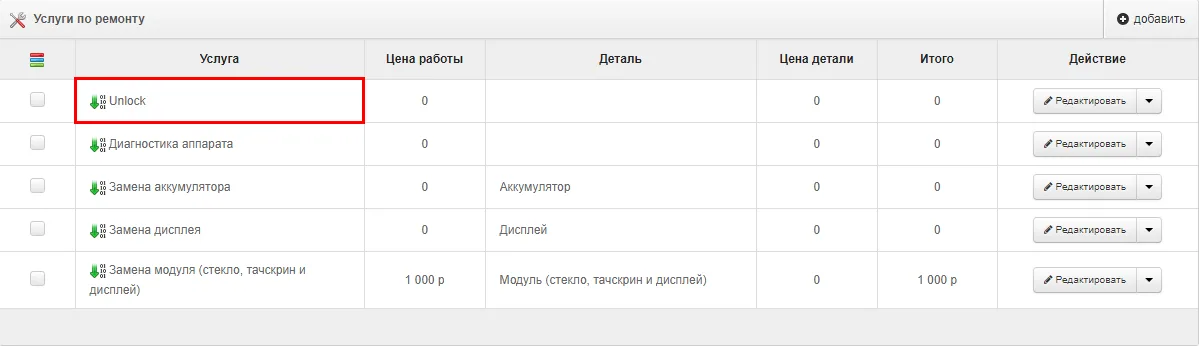
Result: linked services are loaded in when new orders are created