Viewing all orders
The “All orders” panel: filter and search, two list layouts, a short order card with its status, priority and due date
Updated
The “All orders” module is the shared list of repair orders. Here an order is found, its state is judged from the short card, and from there you move on to the order overview.
Contents:
You can reach “All orders”:
- Control panel → Sales department → Orders
- Quick access menu → Orders → All orders
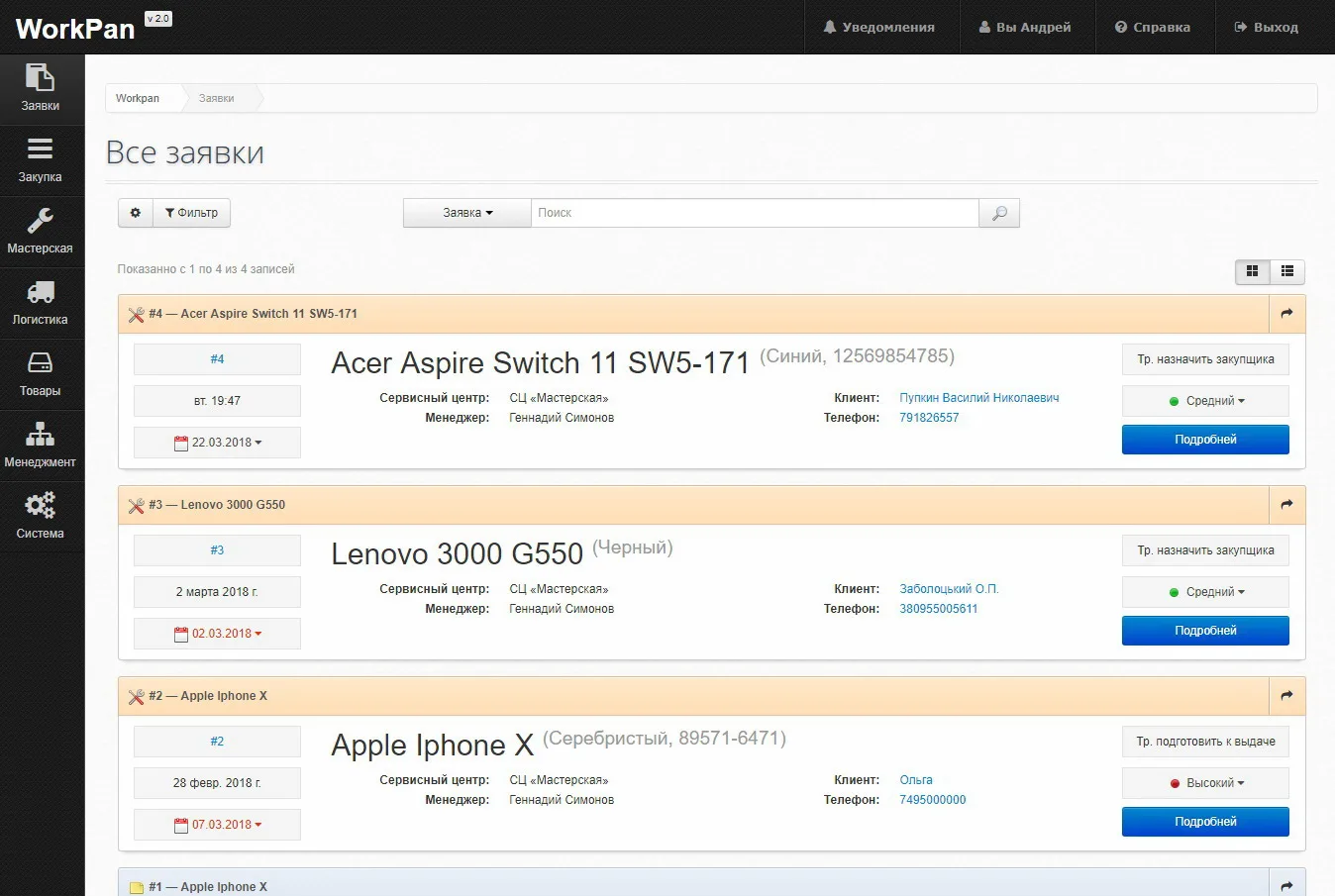
Search and filter
Three tools sit above the list:
- Filter — selects orders by their attributes: service centre, status, priority, dates.
- Search — searches by a string. The selector to the left of the field chooses where to look: in the order itself, in the client and in other objects linked to it.
- The gear — the list display settings.
Below the panel the system shows how many records made it into the selection: “Showing 1 to 4 of 4 records”.
List layout
Two buttons in the top right corner switch the view: expanded cards (the default) and a compact table. Cards are handier at the front desk, the table when there are many orders and you need an overview.
The short order card
Every order in the list shows the essentials without being opened:
- The order number and the device model — in the card header; the header colour reflects the state of the order.
- The creation date, the intake time and the estimated due date — in the left column. The due date can be changed straight from the list.
- The model, colour and IMEI (or serial number) of the device — large, in the centre.
- The service centre and the manager running the order.
- The client and their phone number — as links: you can go straight to the contact from the card.
- The order status — what has to happen next: assign a buyer, assign a technician, prepare for handover.
- The priority — low, medium or high; changed from the list.
- The “More” button opens the order overview.