# Exporting data
> Exporting data from the program into a CSV file.
https://workpan.com/en/doc/export/
Published: 2019-01-21
Updated: 2026-09-11
---
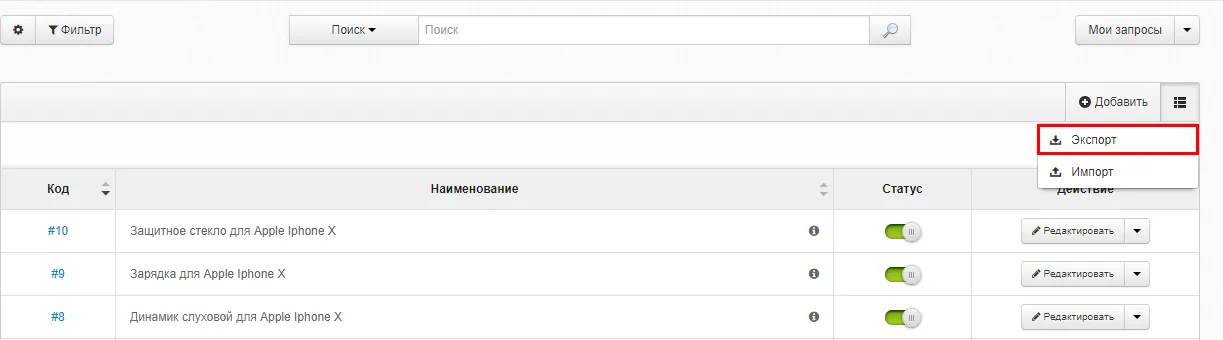
To export data, open the reference book you need and choose “Export” in the actions menu. Then download the file offered.
When you export entries, you get a CSV file.
- File encoding:
- Unicode UTF-8
- Delimiter:
- Comma “,”
- Text delimiter:
- Double quotes “"”
The first column is the table header — it must not be deleted.
Exported files are best opened in **OpenOffice**, since that program has all the settings fields required. You can download it from the official site [openoffice.org](http://www.openoffice.org/download/index.html)
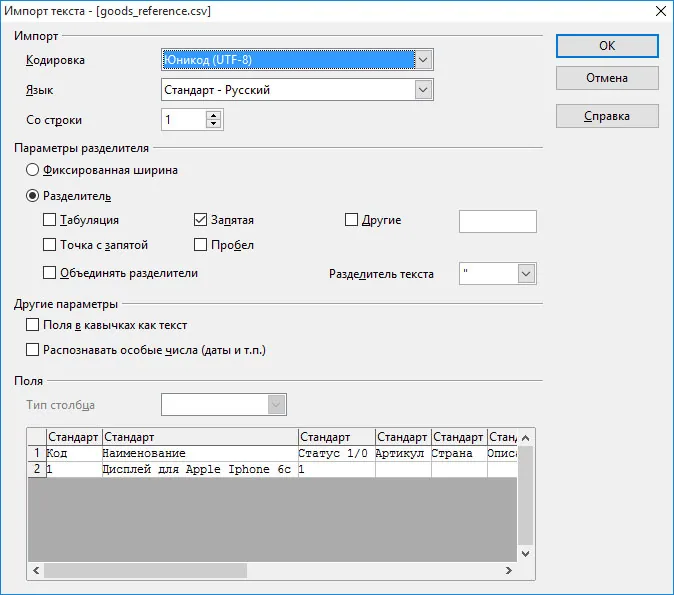
Screenshot of a CSV file opened in OpenOffice
After that you can edit the file and, if needed, load it back into the system, following the instructions on [“Import”](https://workpan.com/en/doc/import/)